SSH keys stored in the standard ~/.ssh/ directory face significant security risks: any malicious script gaining filesystem access can copy them and compromise servers. To address this, macOS Sequoia and later versions offer Secure Enclave SSH, which stores private keys in an isolated hardware subsystem on Apple chips, making extraction impossible even if a Mac is fully compromised.
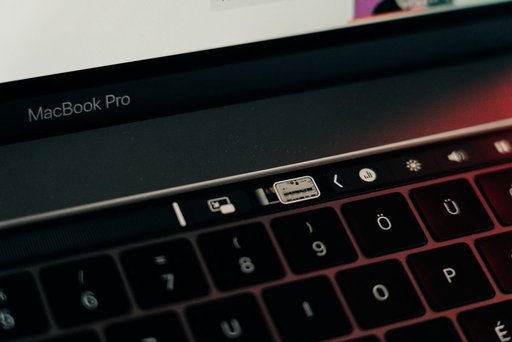
Secure Enclave SSH works similarly to traditional SSH keys but with hardware-backed security. The private key is created inside the Secure Enclave and never leaves it. Instead, a “key handle” file on disk serves as a reference that tells SSH to request the Secure Enclave to sign authentication challenges. When enabled with biometric authentication, users must approve each signing operation via Touch ID.
Setting up Secure Enclave SSH involves several steps. First, create the key using the sc_auth command with the p-256-ne (non-exportable) curve and biometric requirement:
sc_auth create-ctk-identity -l "ssh-MacBook" -k p-256-ne -t bio
Next, export the key handle using ssh-keygen and the SSH_SK_PROVIDER environment variable, which must point to /usr/lib/ssh-keychain.dylib. Configure your shell to set this variable, then retrieve your public key and copy it to server authorized_keys files as normal.
A critical step often missed: SSH doesn’t automatically discover Secure Enclave keys with non-standard filenames. You must explicitly add the key to ~/.ssh/config with an IdentityFile directive, placing it first if you want it as your default key.
The approach provides strong security benefits but comes with tradeoffs. The Touch ID prompt references “ctccardtoken” rather than SSH, since it originates from the low-level CryptoTokenKit framework. More significantly, Secure Enclave keys cannot be backed up or transferred—they are cryptographically bound to the specific Mac. The source recommends creating multiple keys across different devices and adding them all to servers’ authorized_keys as backup.
According to the source, requiring Touch ID for every SSH operation may seem inconvenient, but it provides visibility into key usage and prevents silent misuse if malware gains access. Third-party alternatives like Secretive offer similar Secure Enclave protection with improved UI, or users can combine Secure Enclave keys with hardware security keys like YubiKey for additional redundancy.
Key facts
- macOS Sequoia and later support SSH keys backed by Secure Enclave, an isolated security subsystem where private keys are created and never leave the hardware
- Secure Enclave SSH keys require biometric authentication (Touch ID) for each use and cannot be extracted even if a Mac is compromised
- Keys are tied to the specific Mac and cannot be backed up or exported, so multiple keys across devices are recommended as backup